From ChatGPT to printed cards
Made your business card in ChatGPT? Here's how to print it.
Save the image, upload it to our Designer, check a few print details ChatGPT doesn't think about, and order. It takes a few minutes.
Our team reviews your design before printing.
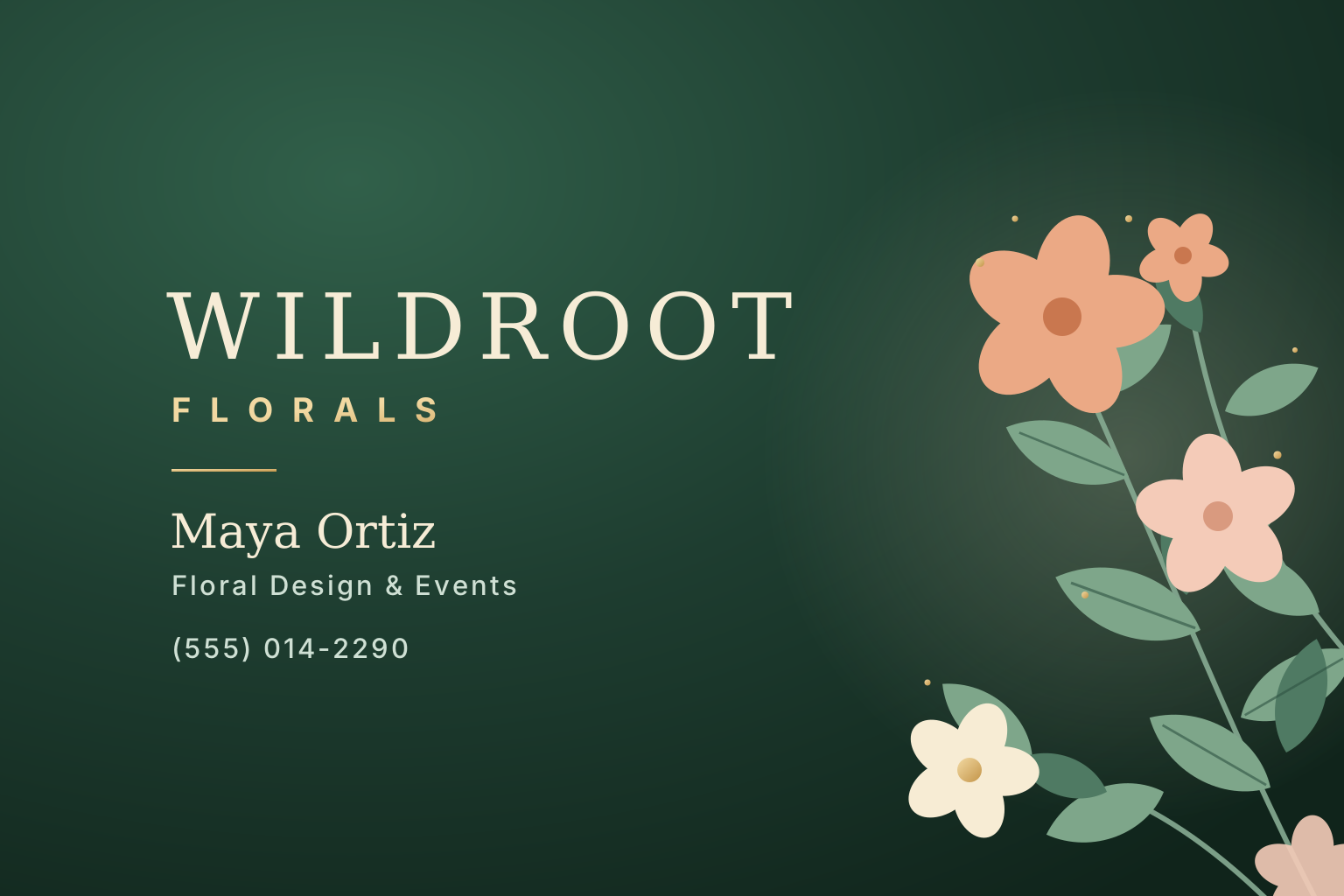
Design a business card for my flower shop, Wildroot Florals. I'm Maya Ortiz, Floral Design & Events, (555) 014-2290. Dark green with peach flowers.
Here's a business card design for Wildroot Florals:
From ChatGPT to your Designer in four steps.
Step 1: Save the image from ChatGPT
On a phone: tap your image to open it, then tap the save (download) button. It goes to your photos.
On a computer: click your image, then click the download arrow on it. The file lands in your Downloads folder.
Can't find it? ChatGPT keeps every image you've made in its Library, in the sidebar.
On a computer DownloadOn a phone 9:41Saved to PhotosIllustration. ChatGPT's screen may look a little different.
Step 2: Upload it to our Designer
Tap Upload my design and choose the image you saved. It opens on a business card, with lines that show where the card gets cut.
Want a printed back? Upload a second image to the back of the card.
A wide ChatGPT image lands with thin empty strips at the sides. Tap Fill to cover the card. Step 3: Make it fill the card
ChatGPT's wide images are a little taller than a business card, so yours may first appear with thin empty strips at the sides. Tap Fill to cover the whole card.
Fill trims a sliver off the top and bottom. Drag the image until nothing important sits near those edges. Try it on the example.
Your ChatGPT image
In the Designer
Empty strips would printThe whole image shows, but empty strips (about 12% of the card's width) would print at the sides. Tap Fill.
- Bleed: trimmed off
- Cut line
- Safe area: keep words inside
Step 4: Check it, then order
Open the preview and zoom in. Read every name, number and email: AI images sometimes swap or invent letters.
Then approve the design and check out. Our team reviews your design before printing and lets you know if anything needs attention.
Preview
- Design covers all the way to the edges.
- Double-checked my spelling, addresses, and numbers.
- All of my important text is within the Safe Area.
- Artwork reaches the Bleed Area on all sides.
I've reviewed and approve the design.Add to CartThe preview walks you through the same checks before you order.
What ChatGPT doesn't know about printing Six quick checks before you order.
- Photo of a cardFlat design
A flat design, not a photo of a card
ChatGPT sometimes shows your card lying on a desk at an angle. That's a mockup, and it would print as a picture of a card. Ask for the flat front, straight on.
- White borderEdge to edge
Color all the way to the edges
No white frame or border. The background should run past the cut line by 1/16 in on every side (printers call this bleed), so the cut never leaves a white sliver.
Maya Ortiz
Floral Desgin & Evnets
(555) 014-2209
Example of AI mistakes: Design is spelled Desgin, Events is spelled Evnets, and the last digits of the phone number are swapped.
Every letter checked
AI images can misspell words or scramble phone numbers. Zoom in and read everything twice. We print the words you approve.
Words away from the edges
Keep names, numbers and logos inside the dashed line in the Designer (the safe area), with a little breathing room.
A wide image
A business card is 3 1/2 × 2 in, a wide shape. Ask ChatGPT for a wide landscape image (3:2). A square image loses about 41% of its height when it fills the card.
One image for each side
Want a printed back? Make it as a second image in the same style and upload it to the back of the card.
Business card print specs
- Card size
- 3 1/2 × 2 in
- Size with bleed
- 3 5/8 × 2 1/8 in
- Bleed
- 1/16 in past each edge
- Safe area
- 1/16 in or more inside each edge
- Best image size
- 1088 × 638 px or larger (300 pixels per inch)
- Files
- PNG, JPG or WebP, up to 25 MB
Only made a logo? Build the rest of the card here.
On a computer: open the Designer, upload your logo, then add your name and details with the Text tool. Or start from a template and add your logo to it.
On a phone: the phone uploader prints your image as the whole card. To put a logo and typed details together, finish on a computer, or ask ChatGPT for the whole card with the first prompt below.
WILDROOT
FLORALS
Maya Ortiz
(555) 014-2290
Prompts that print well Copy one, fill in the highlighted parts, paste it into ChatGPT.
The whole card, ready to print
Works on a phone or a computer.
Design the front of a horizontal business card for [business name], a [what you do].
Use this text, spelled exactly as written:
[Your name]
[Your title]
[Phone number]
[Email or website]
Style: [for example: dark green with peach flowers, elegant serif type].
Make it a wide landscape image (3:2). Show only the flat card design, straight on, filling the entire image edge to edge. No mockup, no table, no hands, no shadow, no border.
Keep all text and logos well away from the edges of the image.
Artwork only, add your words here
Best on a computer: you type your details in our Designer, so they print crisp and are easy to fix.
Create background artwork for a horizontal business card for [business name], a [what you do].
Style: [colors and mood].
Do not include any words, letters or numbers.
Make it a wide landscape image (3:2), flat and straight on, filling the entire image edge to edge. No mockup, no border.
Keep the [left] side calm and simple so I can add my name and contact details on top.
The back of the card
Send this in the same chat, right after the front.
Now design the back of this business card in the same style and colors.
Include only: [your logo, or a short line like "Flowers for every occasion"], spelled exactly as written.
Same wide landscape shape (3:2), flat and straight on, filling the entire image edge to edge. No mockup.
A logo you can place anywhere
Upload it on a computer, then add your details with the Text tool.
Create a simple logo for [business name], a [what you do].
Style: [for example: a hand-drawn flower, clean lines].
Put it on a transparent background (or plain white), centered, with nothing else in the image.
Fix a typo without starting over
Use it whenever a word or number comes out wrong.
Keep everything exactly the same, but change "[wrong text]" to "[right text]". Do not change anything else.
Got a photo of a card instead?
Use it when ChatGPT shows the card on a desk or at an angle.
That looks like a photo of a card. Show me only the flat front of the card, straight on, filling the entire image edge to edge. Remove the table, the shadow and the angle.
Questions, answered
Is a ChatGPT image sharp enough to print on a business card?
Usually, yes. A wide ChatGPT image is 1536 × 1024 px. Filling a business card, that works out to about 424 pixels per inch, above the 300 we recommend. A blurry image will still print blurry, so zoom in and check it before you order.
ChatGPT gave me a square image. Can I still use it?
You can, but a square image has to lose about 41% of its height to fill a wide business card. For the best result, ask ChatGPT to remake it as a wide landscape image (3:2).
What kind of file can I upload?
PNG, JPG or WebP, up to 25 MB. ChatGPT usually saves images as PNG files, so the file you download is ready to upload.
What do bleed and safe area mean?
Cards are cut from bigger sheets, and the cut can shift by a hair. Bleed is the extra 1/16 in of background past each edge, so a tiny shift never leaves a white sliver. The safe area is everything inside the dashed line, at least 1/16 in in from the edge, where words and logos won't get cut.
Can I add or fix text after I upload?
On a computer, yes. The Designer has a Text tool, plus shapes, icons and QR codes, so you can type your details over the image or cover a mistake. On a phone you can move, resize, fill and rotate your image, so make sure the words in it are right before you upload.
Can I print a back side too?
Yes. Make the back as its own image, then upload it to the back of the card in the Designer.
Do you check my design before it prints?
Yes. Our team reviews your design before printing and lets you know if anything needs attention. You approve the final preview, and we print the words you approve, so check spelling, numbers and emails carefully.
Your ChatGPT design, printed on real card stock.
Upload it, check it, and we'll review it before it prints.